On every smart lock we sell, the reset is a physical button on the lock itself. It is not done from the app, and it does not need the old code. That last part is the whole point: if you have just moved into a flat and the previous tenant's fingerprints are still in the door, you do not need anything from them to clear the lock out.
Before you do it, read the next section. Three of the four reasons people come to us wanting a reset turn out not to need one, and a reset wipes every fingerprint, code and card on the lock.
First: do you actually need a reset?
A factory reset erases all the users. If what you want is narrower than that, there is a shorter way.
| What is happening | What you actually need |
|---|---|
| You want to change your own code, or add and remove a cleaner or a driver | Not a reset. Use the admin code on the lock, or the app. Everyone else's fingerprints stay. |
| The lock is dead and will not respond | Not a reset — power. A USB port on the lock takes a phone power bank, and the backup keys come in the box. |
| It has stopped accepting entries after several wrong tries | Not a reset — wait. Too many wrong attempts and the lock locks out the keypad for a few minutes, then allows retries. |
| You have moved in, bought the lock used, or lost the admin code | A reset. This is the case it exists for. |
What a reset erases
Everything a person could open the door with, and everything you set:
- Every registered fingerprint
- Every PIN code, including the admin code
- Every RFID key card
- The pairing with the phone app, and the admin account
- The access log and any custom settings
What it does not touch is the hardware: the mechanical keys still work, and the lock is still fitted to the door exactly as it was.
How to reset it, step by step

- Put fresh batteries in first. A reset part-way through on a dying battery is the one way to turn a ten-minute job into a call-out. The models differ: the A9x takes 8 AA alkaline cells, the K9 takes 4 AAA, and the glass-door lock takes 4 AA.
- Open the door and keep it open. Wedge it if it swings shut on its own. Do not reset a lock on a closed door.
- Find the reset button on the lock body. It is on the inside half of the lock, usually under the battery cover or behind the interior panel, so you reach it from inside the house. On some models you hold it while the battery goes back in.
- Hold it until the lock confirms. You get a voice prompt, a tone or an indicator light. That confirmation is the signal it worked — not the button going in.
- Set the new admin code before anything else. On a freshly reset lock there is no admin code, and you cannot add a fingerprint or a passcode without one. Set it, then write it down somewhere you will still have it in a year.
- Then add the people. Fingerprints, then PIN codes, then cards, then pair the app.
- Test every method with the door still open. Each fingerprint you registered, each code, each card, and the mechanical key. Then close the door.
That last step is the one people skip, and it is the only one that costs nothing and catches everything.
One app for the range, with one exception
Every smart lock we sell is run from the Tuya app, and the menu on the lock itself is the same from model to model, so what you learn on one carries over to the next.
The exception is the QL811, which comes in two versions, and the version decides the app: the TTlock version runs on the TTlock app, the Tuya Smart version on the Tuya app. If you are re-pairing a QL811 after a reset and the app cannot find it, check which version you have before you assume the lock is faulty.
Safes and locking drawers work the opposite way
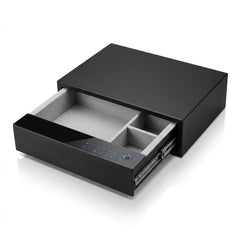
This catches people out, so it is worth being blunt about. On our smart safe drawer and the smart bedside table, the reset button is inside. You can only reach it when the drawer is already open.
So on a safe, the reset button is there to change your code, not to get you back in when you are locked out. Two things follow:
- The factory passcode on both is 1234. Change it the first time you use it, before anything goes inside.
- If the batteries go flat while it is locked, there are two ways in: the emergency key, and an external power contact on the outside.
For the full sequence on a safe, see how to reset an electronic safe code.
What a reset will not fix
A reset clears users and settings. It does nothing mechanical. If the lock misbehaved before the reset and still misbehaves after it, the cause is one of these instead:
- Low batteries. The most common cause by a wide margin, and the first thing to rule out.
- A misaligned latch. If the bolt has to be forced into the frame, the motor is fighting the door. This usually shows up as the lock sounding like it is working but not throwing the bolt.
- Loose mounting screws. A lock that has worked itself loose puts the bolt out of line with the keep.
- A dirty or wet fingerprint reader. Wipe the sensor dry. In Kuwait, dust on the sensor and a damp fingertip in summer both cause rejected prints that look like a fault.
- Installation. If the lock has never worked properly since the day it went on, see how to install a smart lock for the fitting mistakes that cause it.
If it is none of those, bring the lock or the photos to the counter rather than resetting it a second time. Our locks carry a 12-month warranty, and on several models it covers hardware faults including the motor and the fingerprint reader.
If you are locked out right now
A reset is not the answer, because the reset button is on the inside of the door. Work through this instead:
- Use the mechanical key. Every smart lock we sell comes with backup keys. Keep them somewhere other than inside the locked house, which is the one mistake that turns a cheap problem into an expensive one.
- If the battery is flat, give it power. There is a USB port on the outside of the lock; a phone power bank on it will run the lock long enough to open the door normally. Keep a power bank and a cable in the car or a nearby drawer.
- If it has locked the keypad, wait. After too many wrong attempts the lock stops accepting entries for a few minutes and then allows retries.
More on all three in what to do if you are locked out of a smart lock.
Moving into a flat with a smart lock already on the door
This is the single most common reason anyone in Kuwait needs this page, so here is the order to do it in:
- Get the mechanical keys from the landlord or the agent, and check they turn.
- With the door open, reset the lock from the button on the inside. You do not need the previous tenant's code or their phone.
- Set your own admin code, then add your household.
- Pair the app to your phone, so the previous tenant's phone no longer has it.
- Test everything with the door open before you close it.
If the lock is an unfamiliar model and you would rather not guess, bring a photo of it to the showroom and we will tell you where the button is on that one.
Help from Bab Al-Saif

- There are locks fitted to real doors at our showroom in Shuwaikh Plaza, Khalifa Al-Jassim Street, Shuwaikh Industrial, so you can practise the menu on the model you own.
- In Kuwait since 1992, rated 4.7★ from more than 350 Google reviews.
- Pay cash on delivery, by card, or in instalments with Deema.
- Delivery across Kuwait, and fitting charged according to the door.
Send us the model and a photo of the inside of the lock through contact us and we will talk you through the reset on your specific lock.
Frequently asked questions
How do I reset a smart lock?
Hold the door open, press and hold the physical reset button on the inside half of the lock, usually under the battery cover or behind the interior panel, and wait for the voice prompt, tone or light that confirms it. Then set a new admin code before you add any fingerprints, codes or cards.
Can I reset a smart lock without the old code?
Yes. On every smart lock we sell the reset is done with the physical button on the lock, not from the app, and it does not need the existing code. That is why it works when you have just moved in or lost the admin code.
Can I reset a smart lock from the app?
No. The reset is a button on the lock itself. The app manages users and codes, but clearing the lock back to factory settings is done at the door.
Where is the reset button on a smart lock?
On the inside half of the lock, so you reach it from inside the house: under the battery cover or behind the interior panel, depending on the model. On a smart safe or locking drawer it is inside instead, which means you can only use it when the safe is already open.
Will a reset delete the previous tenant's fingerprints?
Yes, that is exactly what it is for. A factory reset erases every registered fingerprint, PIN code, key card, the admin account and the app pairing. The mechanical keys still work afterwards.
I am locked outside. Can I reset the lock to get in?
No, because the reset button is on the inside of the door. Use the mechanical backup keys, or put a phone power bank on the USB port if the battery is flat, or wait a few minutes if the keypad has locked itself after wrong attempts.
Which app do I pair the lock with after a reset?
The Tuya app for the whole range, with one exception: the QL811 comes in two versions and the TTlock version runs on the TTlock app instead. Check which version you have before deciding the lock will not pair.
Do I have to reset the lock just to change my code?
No, and you should not. If you still have the admin code you can change it and add or remove users directly, which keeps everyone else's fingerprints and cards in place. A reset is for when the admin code is gone.
Browse the full range of smart door locks, or go to smart locks for metal and aluminium doors and smart locks for wooden doors. If you are still choosing, read wooden door or aluminium door: which smart lock fits and are smart locks safe for homes.